Key takeaways
- MCP (Model Context Protocol) is an open standard that lets AI assistants like Claude connect directly to external tools and live data.
- In trading, MCP means you can check your account balance, view live prices, and place MT5 orders directly through a chat conversation.
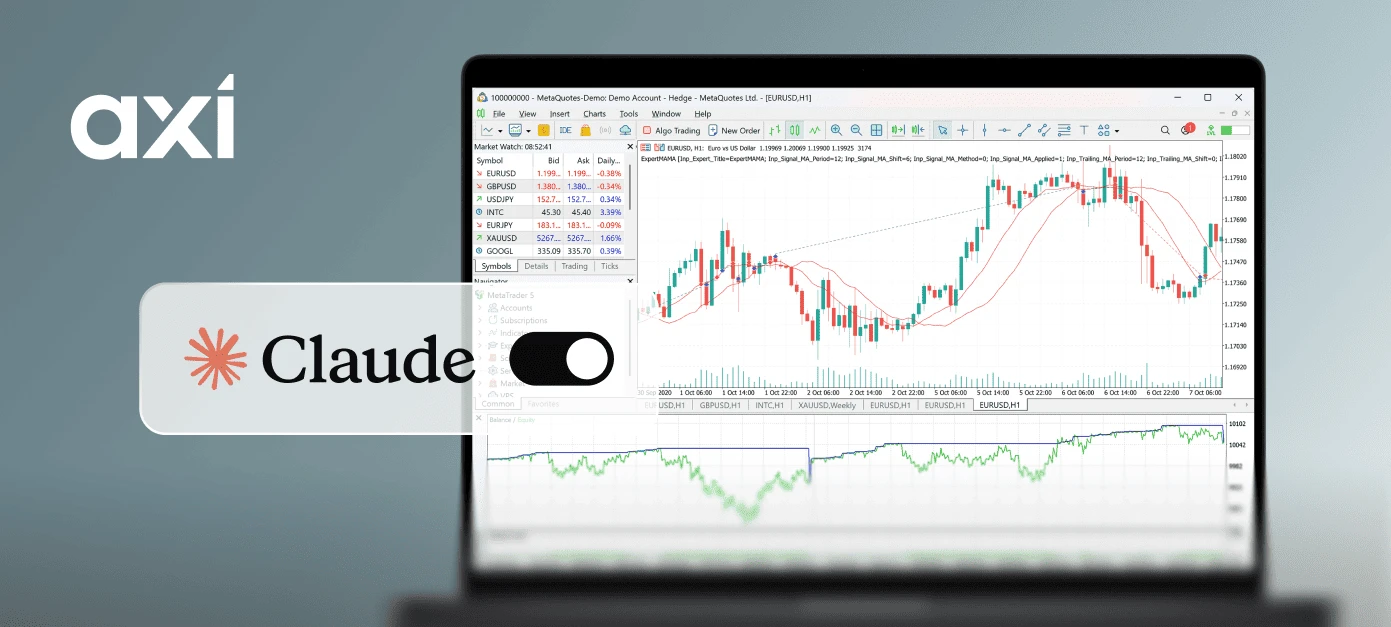
- The Axi MCP integration connects Claude to your MT5 account, providing tools for reading live account data and executing, modifying, or closing positions.
Table of contents
- What is MCP?
- How does MCP work in trading?
- What can you do with MCP besides placing orders?
- How to use MCP with Axi
- How to connect
- How Axi MCP compares to other AI trading tools
- Risks and limitations of MCP in trading
- Frequently asked questions
MCP in trading is an open standard that lets an AI assistant, such as Claude, connect directly to a compatible trading account. This allows you to read live prices, review positions, and place or manage orders through natural conversation.
This guide covers what MCP is, how it works, how to connect your Axi MT5 account to Claude, the primary risks to keep in mind, and how MCP compares to traditional trading tools.
What is MCP?
MCP stands for Model Context Protocol. It is an open standard that gives AI applications a universal method to connect to external tools, databases, and third-party software.
It is frequently described as the "USB for AI." Just as USB provided a single standardised connector for hardware devices across computers, MCP gives AI models a unified protocol to interface with any compatible system or service.
In trading terms, MCP acts as a permissioned window into your brokerage account. Without it, an AI assistant can explain what a stop-loss is, but cannot view yours. With it, the assistant can read your live equity, analyse open positions, and execute market actions based on your explicit instructions.
Before MCP, AI models faced two main boundaries: knowledge cutoff dates and an inability to interact with live software systems. MCP bridges both gaps by enabling AI models to retrieve real-time data and perform actions across connected platforms.
Anthropic introduced MCP as an open-source project in November 2024. In December 2025, Anthropic donated the protocol to the Agentic AI Foundation (a directed fund under the Linux Foundation co-founded alongside Block and OpenAI). By then, more than 10,000 public MCP servers were active, and ChatGPT, Gemini, Microsoft Copilot, Cursor and Visual Studio Code supported the standard.
How does MCP work in trading?
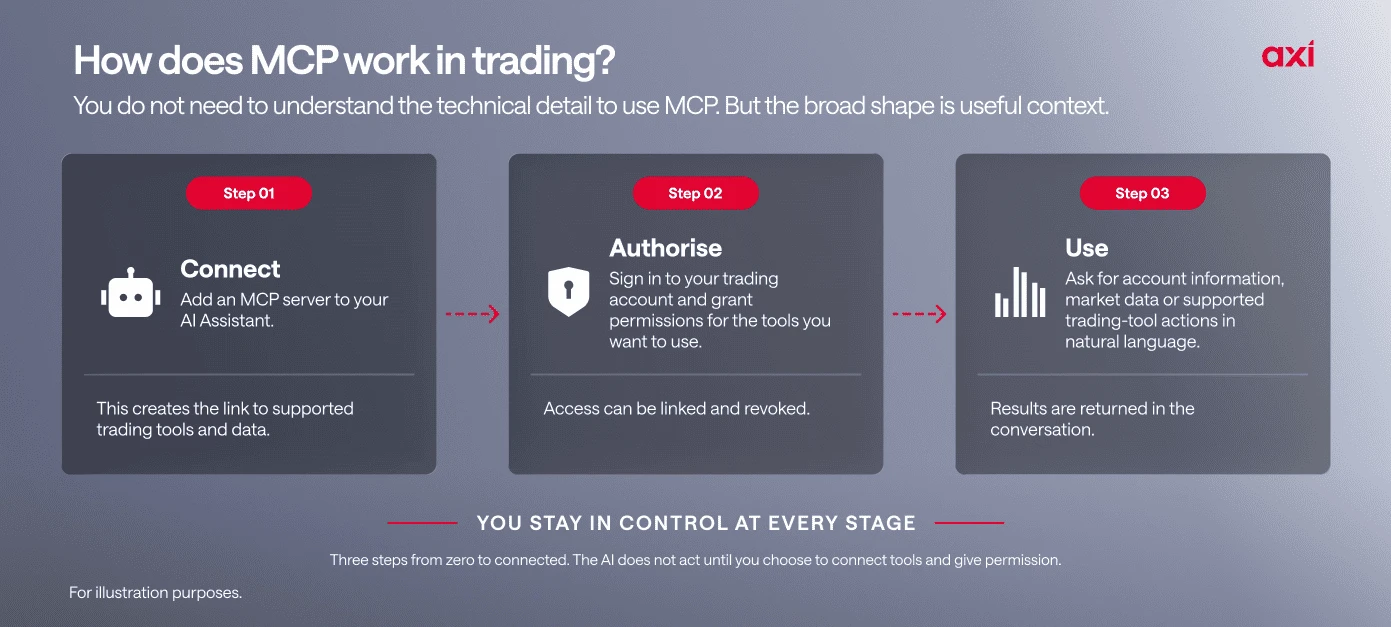
MCP works on a client-server model. Your AI assistant, in this case Claude, acts as the MCP client. Your trading platform acts as the MCP server.
When you input a prompt, Claude sends structured requests to the MCP server, which processes the command and returns the required data or executes the specified action.
Through the Axi MCP integration, Claude can access nine specific functions on your MT5 account:
- Account Overview: View live balance, equity, margin levels, and account status.
- Market Lookup: Search and filter all tradeable symbols on your account.
- Live Quotes: Retrieve real-time bid, ask, and spread pricing.
- Open Positions: Monitor entry price, live price, and unrealised P&L.
- Place Trades: Open buy or sell orders with custom stop-loss and take-profit parameters.
- Modify Positions: Adjust stop-loss and take-profit levels on open orders.
- Close Positions: Close open positions fully or partially.
- Trade History: Review order fill history, including P&L, commissions, and swap fees.
- Candle Data: Access OHLC historical candle data across custom timeframes for analysis.
The connection uses OAuth authentication. Your Axi credentials are never shared with Claude. Every trade action originates from your explicit instruction in the chat.
A simple query might be "What is my current unrealised P&L on gold?", for which Claude queries your MT5 account via MCP and returns your position data in seconds.
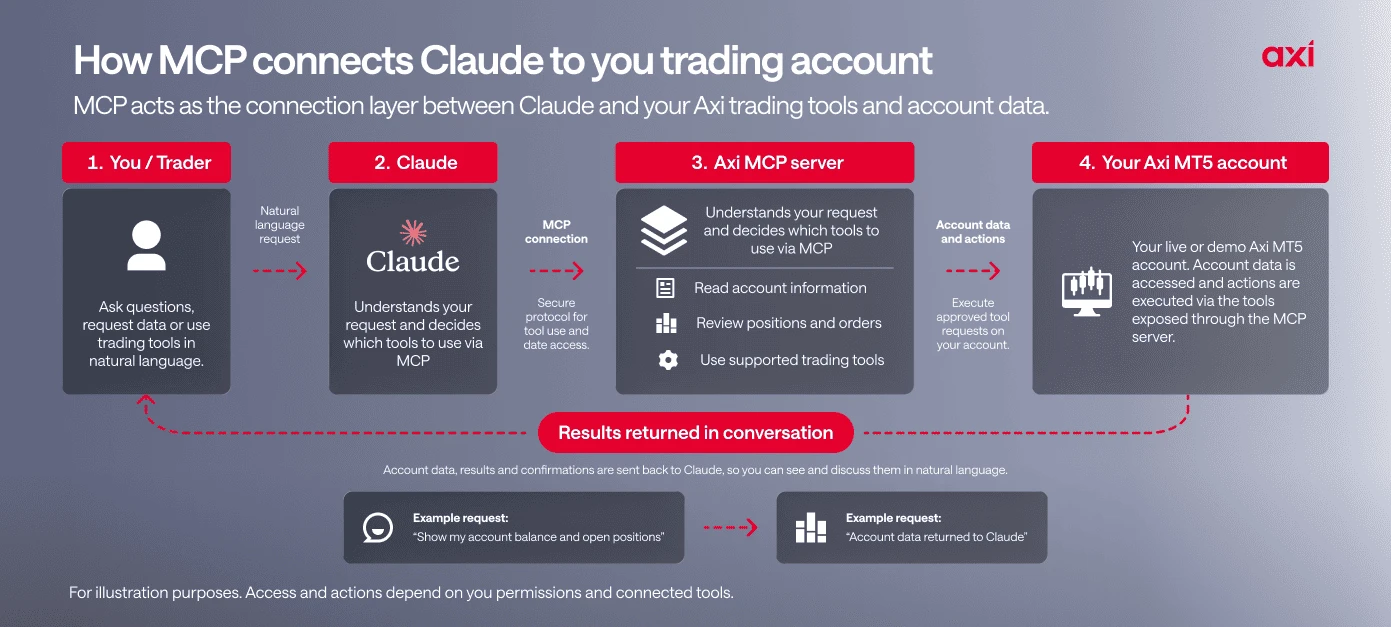
Without MCP vs with Axi MCP + Claude
| Task | Standard MT5 workflow | Axi MCP + Claude workflow |
|---|---|---|
| Check account status | Log in to MT5, navigate to Terminal window | Prompt: "What is my balance and open P&L?" |
| Check spreads | Search instrument in Market Watch screen | Prompt: "What is the current spread on gold?" |
| Execute orders | Open Order Ticket, manually fill fields | Prompt: "Open 0.5 lots on EURUSD, stop loss at 1.0820" |
| Analyse past trades | Export history report, open in spreadsheet | Prompt: "Summarise my last 20 trades" |
| Monitor risk | Switch tabs to check margin calculations | Prompt: "How much free margin do I have?" |
Note: Example prompts are for illustrative purposes only and do not constitute investment advice.
What can you do with MCP besides placing orders?
The read-only tools are where most traders will start, and they carry no order risk. Three workflows use only data Claude can already read:
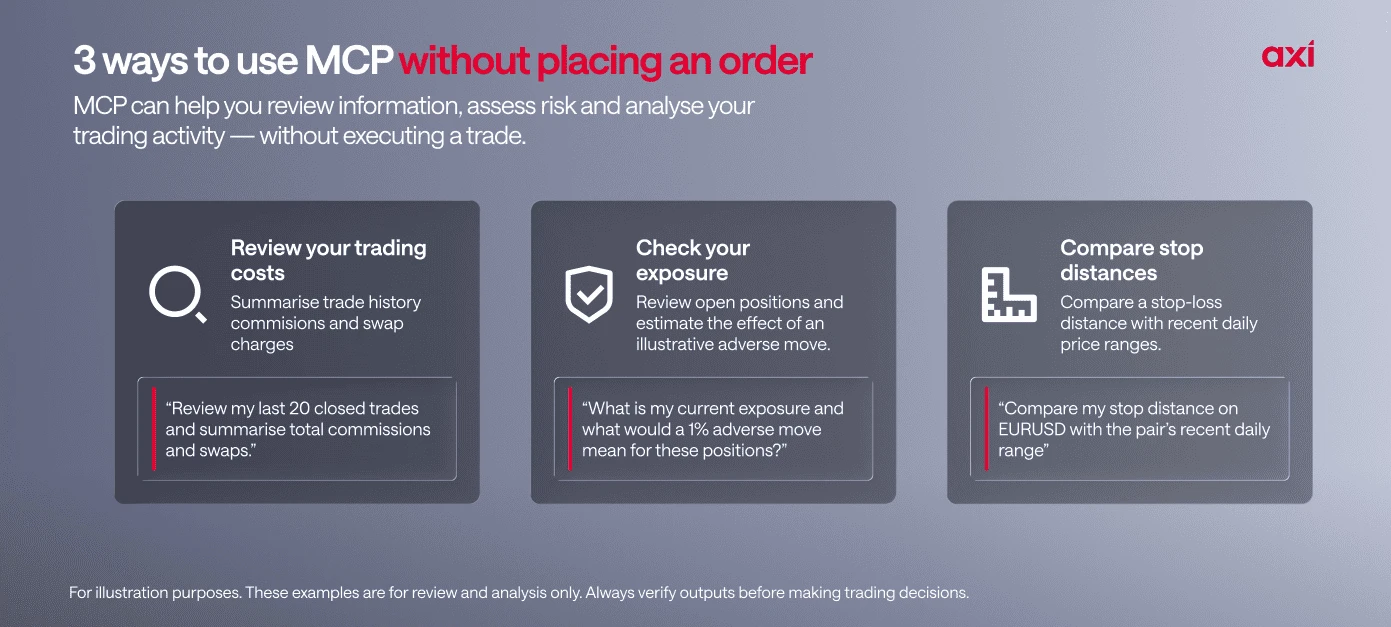
Review your last 20 trades, including costs
Trade history returns P&L, commission, swap, and entry and exit prices.
Ask: "Summarise my last 20 trades by instrument. Show win rate, average win, average loss, average holding time, and total commission and swap." This shows how much of your result went to costs.
Check your exposure before you trade
Account overview and open positions give Claude your equity, margin, and every open trade.
Ask: "Group my open positions by instrument and show what a 1% move against all of them would do to my equity. Show the calculation." Claude does the arithmetic, and you check it.
Compare your stops with recent price movement
Candle data lets Claude calculate the average daily range for a symbol.
Ask: "Using the last 20 daily candles on EURUSD, what is the average range in pips, and how does my stop-loss distance compare?" This tests whether your stops sit inside normal market noise.
For each workflow, ask Claude to show its working and spot-check one figure in MT5. AI assistants can make calculation errors.
How to use MCP with Axi
The Axi MCP integration connects Claude directly to your MT5 account, giving it permissioned access to live data and the ability to open or close positions. Connect via Claude.ai using your Axi login. No additional software required. You can disconnect at any time from Claude or from Axi.
The integration is currently available to eligible clients onboarded under AxiTrader LLC with an active MT5 account. Both live and demo accounts are supported.
How to connect
Connecting via Claude.ai
- In Claude, go to Customize and select Connectors.
- Click Add and name the connector Axi MCP. Enter the server URL
https://mcp.axi.com/mcpand click Continue. Keep authentication set to Always required. Under OAuth client, select Use Anthropic's hosted client metadata, then click Add. - Sign in to your Axi account if prompted, review the requested permissions, and click Accept to authorise. Once you return to Claude, the status shows connected, and you can manage permissions for each tool from that page.
Connecting via the Axi Client Portal (existing clients)
- Log in to your Axi Client Portal, head to Settings, and select MCP Management.
- Copy the MCP server URL, then click Connect next to Claude.
- In Claude, navigate to Customize, select Connectors, and click Add. Name the connector Axi MCP, paste the server URL, and hit Continue.
- Leave authentication set to Always required. Under OAuth client, select Use Anthropic's hosted client metadata, then click Add.
- (Optional) If a "Connection has expired" notification appears, click Reconnect to continue.
- Sign in to your Axi account if prompted, review the requested permissions, and click Accept to authorise.
- Once redirected to Claude, your status will update to connected. You can manage permissions for specific tools right from this page.
Note for Claude Desktop: Claude Desktop is also supported. Connect using an API key available from the Axi onboarding team. Treat the key like a password and do not paste it into chats or shared documents.
Note on plan limits: Claude's free plan supports one custom connector, which is enough to connect Axi MCP. A paid Claude plan is only needed to run Axi alongside other custom connectors.
How Axi MCP compares to other AI trading tools
The Axi MCP integration works differently from tools you may already know:
Expert Advisors (EAs) run predefined rules automatically on MT5 without requiring your input on each trade.
Autochartist scans charts for patterns and sends alerts but does not connect to your account or execute trades.
Copy trading replicates the positions of signal providers in your account.
MCP vs API: A trading API is a set of commands that a developer calls from code, so using one means writing and maintaining a program. MCP packages similar actions as tools an AI assistant can use from plain-language instructions, so you describe what you want in the chat instead of coding it.
Standalone AI tools can answer questions and help you analyse markets but have no connection to your live account.
The Axi MCP integration, on the other hand, gives Claude direct, permissioned access to your MT5 data and the ability to act on it, with you approving every decision.
Axi MCP vs other trading tools
| Feature | Axi MCP + Claude | Expert Advisors | Autochartist | Copy trading |
|---|---|---|---|---|
| Decision maker | You | Predefined rules | You | Signal provider |
| MT5 connection | Permissioned access via Axi MCP | Runs directly on MT5 | Integrates with MT5 as a plugin; reads chart data only | Connected to Axi Copy Trading app |
| How you interact | Give Claude instructions in the chat | Configure rules and settings | Receive pattern and level alerts; execute trades manually | Select signal providers to follow |
| Live account data | Balance, positions, history, live market data | Uses platform and market data | Scans chart and market data; no live account access | Limited to the copy trading app |
| Trading actions | Claude can open, modify, and close trades with your approval | Trades execute automatically when rules are met | No execution; pattern alerts and notifications only | Your account replicates trades from signal providers |
| Level of automation | You approve every trading action | Rules-based automated trading | No automation; you execute trades manually | Account replicates signal providers |
| Built for | AI-assisted trading with you in control | Fully automated trading strategies | Automated scanning; manual execution required | Following other traders |
Risks and limitations of MCP in trading
The Axi MCP integration is a tool for AI-assisted trading. It is not a system that acts on your behalf. A few things to be clear on:
- Claude is not a financial adviser. Everything Claude returns through the MCP connection is data and information, not financial advice. All trading decisions and the risks that come with them remain yours.
- Every trade action requires your instruction. Claude cannot place, modify, or close trades without your explicit approval in the chat. It cannot transfer funds, make withdrawals, or access your account outside the permissions you have granted.
- AI can be wrong. Claude can misread an instruction, pick the wrong symbol or miscalculate a figure. Review every order before you approve it and check results in MT5.
- The integration currently supports MT5 accounts only. MT4 is not supported.
- Claude's free plan supports one custom connector. Running Axi alongside other custom connectors requires a paid Claude plan.
Axi Market Analyst Milan Cutkovic says:
"The most common mistake I’d expect is assuming the AI is working with live information, when it’s often using data that’s hours or even months old and confidently filling in the gaps. Even with access to live data through MCP, you could end up with a polished take on EUR/USD that misses this morning’s ECB comments, or a support level that broke two sessions ago.
Before acting, open the chart yourself, check today’s headlines and the economic calendar, and ask the AI for the opposite case to see if your idea still holds up. Remember that position size and stop placement are your decisions, because the AI doesn’t know your account or your risk tolerance.
It’s a great research assistant, but it should be where your process starts, not where it ends."
Frequently asked questions
What is MCP?
MCP (Model Context Protocol) is an open standard that lets AI assistants connect to external tools and live data sources. Axi uses it to give Claude direct, permissioned access to your MT5 account.
Do I need a new Axi account?
Any eligible Axi client with an active MT5 account can connect. You do not need to open a new account.
Does this work on demo accounts?
Yes. Both live and demo MT5 accounts are supported.
Can Claude place trades without instruction?
No. Every action originates from your instructions. Claude cannot act autonomously on your account.
Can Claude access my funds?
No. Deposits, withdrawals, and transfers remain inside the platform under standard authentication. Claude has no access to fund movements.
Does this work on Claude Desktop?
Yes. Claude Desktop connects using an API key available from the Axi onboarding team.
This information is not to be construed as a recommendation; or an offer to buy or sell; or the solicitation of an offer to buy or sell any security, financial product, or instrument; or to participate in any trading strategy. It has been prepared without taking your objectives, financial situation and needs into account. Any references to past performance and forecasts are not reliable indicators of future results. Axi makes no representation and assumes no liability with regard to the accuracy and completeness of the content in this publication. Readers should seek their own advice.

Alex Macris
With a background spanning forex, stocks, and crypto, Alex has contributed financial and stock exchange reports to leading publications and news agencies. Beyond financial markets, he honed his skills by researching and editing international agreements and state reports and producing multimedia resources for diverse brands and organisations.
In addition to written content, Alex, who is fluent in English, French, and Greek, brings extensive experience and passion for audio. His portfolio showcases a versatile skill set encompassing podcast production, educational materials, and advertisements. A team player and lifelong learner, he maintains a balanced perspective on both the big picture and the finer details.
Find him on: LinkedIn